InSaver saves reels, posts, IGTV videos and photos from Instagram to your phone. There are three routes to the same place, and which one you reach for depends on what you are saving.
- Paste a link — fastest for a single reel or post you already have open.
- The in-app browser — best when you are scrolling and saving as you go, and the only way to reach anything that needs you to be signed in.
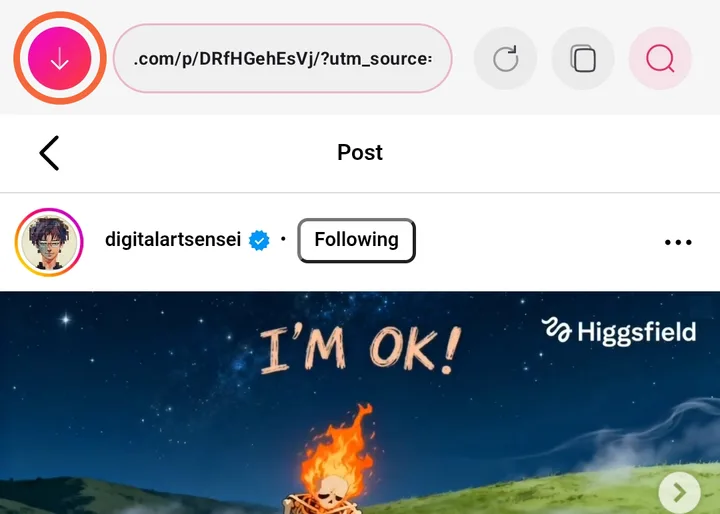
- The header button — the fallback when the browser's own download badge does not appear.
All three end at the same media chooser, where you pick what to save and in what quality.
Step 1 — Open the post and tap share
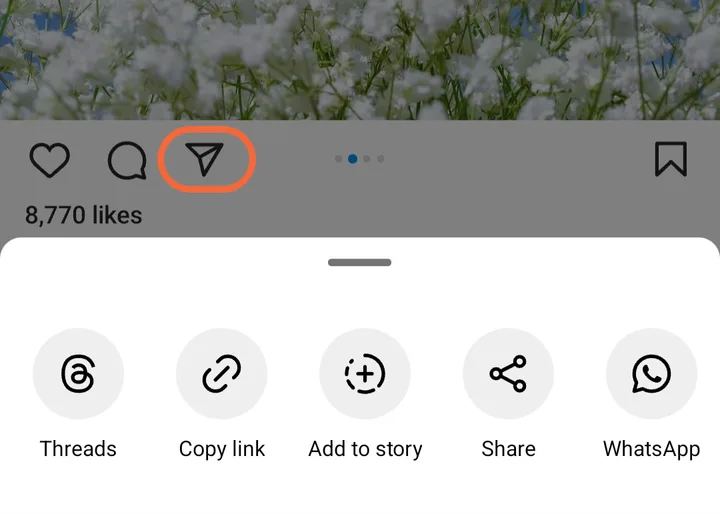
In Instagram, open the reel or post you want and tap the paper-plane share icon underneath it.
Step 2 — Copy the link
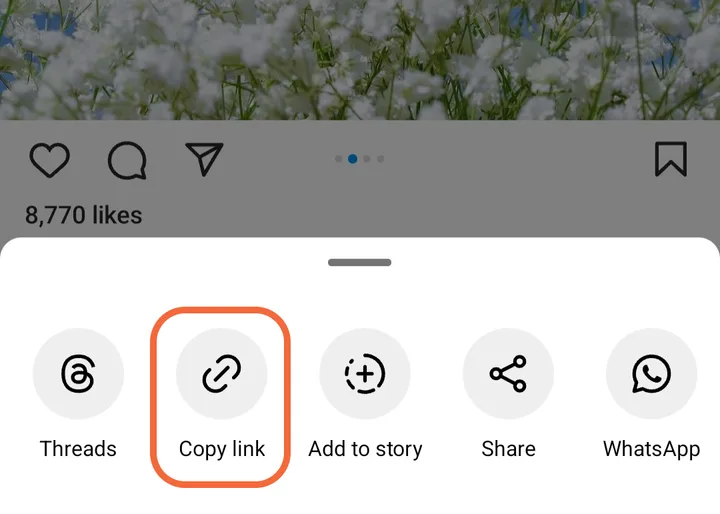
Choose Copy link from the sheet that slides up. Instagram confirms with a small toast, and the address is now on your clipboard.
Step 3 — Paste it into InSaver
Open InSaver and paste the link into the search box, then tap the search button. The app fetches the post and works out every piece of media attached to it — useful for carousels, where one link holds up to ten images or videos.
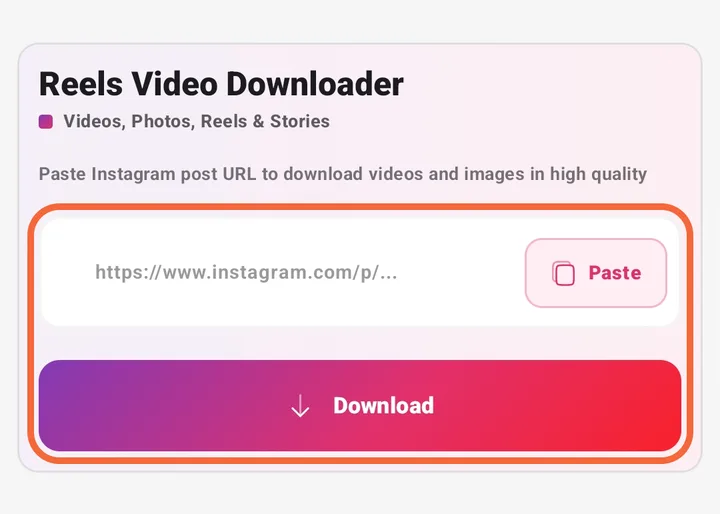
InSaver watches your clipboard, so in practice the link is often already filled in by the time you switch over.
Or browse inside the app
Open the Browser tab and sign in to Instagram there. As you scroll, a download button appears over each post. Tap it and you go straight to the chooser, with no copying at all.
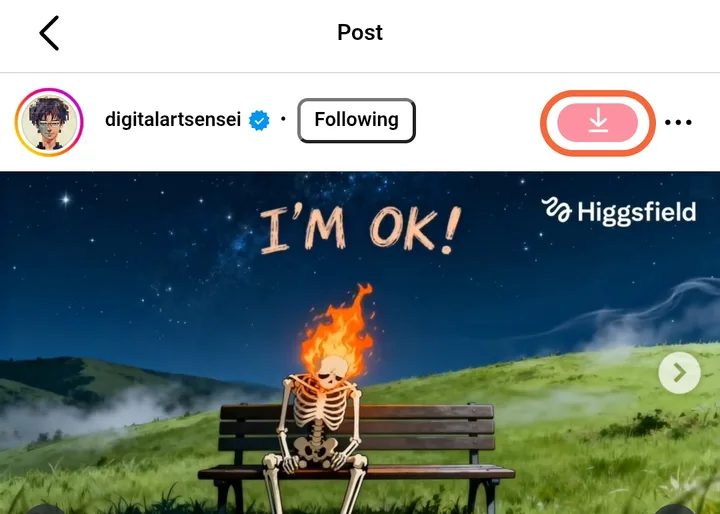
This is the route for stories and for anything from a private account you follow — both need a signed-in session, which only the in-app browser has.
If the button does not appear — use the header
Some layouts do not give the floating button anywhere to sit. When that happens, use the download option in the header bar instead: it acts on whatever post is currently on screen.
Step 4 — Choose what to save
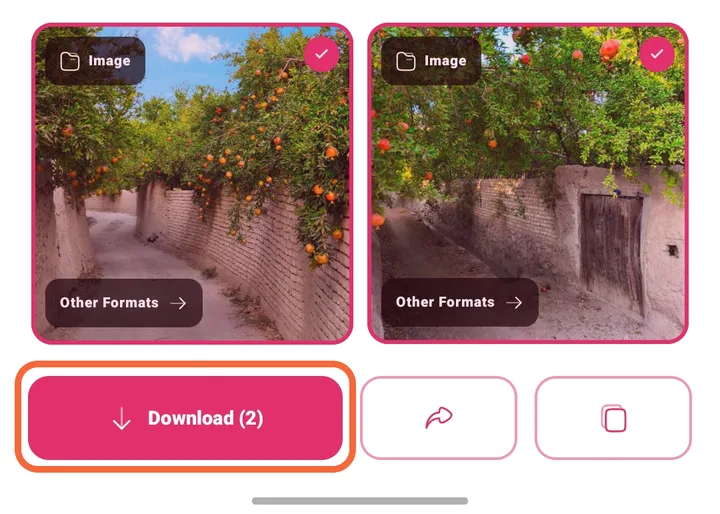
The media chooser shows everything the post contains. On a carousel you get one tile per item, each ticked by default — untick anything you do not want. The button counts what you have selected, so Download (2) means two files.
Step 5 — Or pick a different format
Tapping Other Formats on a tile opens the full list of what Instagram holds for that item — every resolution up to 2K, plus audio-only where a video has a soundtrack worth keeping on its own.
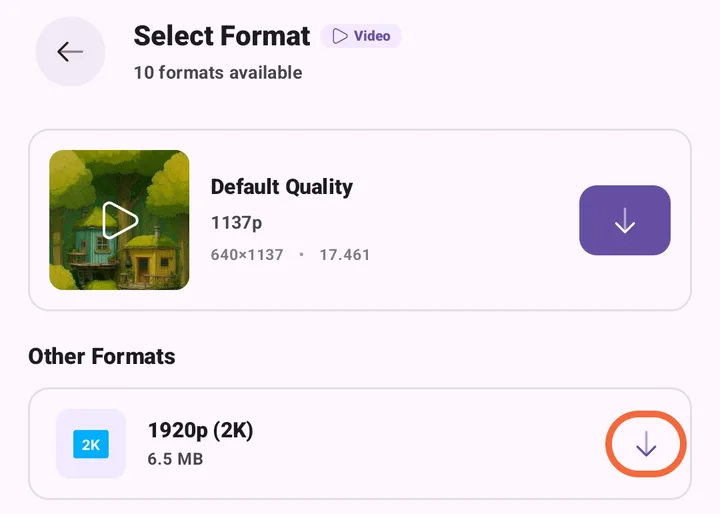
The default download already picks the highest quality available, so this is only worth opening when you deliberately want something smaller — or just the audio.
Where your downloads go
Videos are saved to Movies and photos to Pictures, so both appear in your gallery straight away. The app's Downloads tab keeps its own list if you would rather find them there, and lets you replay, re-share or delete each one.
If something does not work
- Nothing found after pasting. Make sure the link points at a post or reel rather than a profile. A post link contains
/p/,/reel/or/tv/. - A private account. Use the Browser tab and sign in. If the post is not visible to your account in Instagram, InSaver cannot see it either.
- Stories are missing. Stories are only reachable through the in-app browser while signed in — a pasted link will not work for them.
- Only part of a carousel downloaded. Check the ticks in the chooser: each tile is selected individually, and the count on the button is what will actually be saved.
Please download responsibly
Saved media is for your own offline use. The people who posted it still own it, so do not re-upload or redistribute anything that is not yours without their permission.