Media Saver downloads video, photos and audio from a long list of sites, and keeps them on your device. Rather than one fixed route, it gives you four — and the one to reach for depends on where the media lives.
- Paste a link — the fastest way, and it works on every supported platform.
- Platform pages — for Instagram stories and private Facebook videos, where you need to be signed in.
- The built-in browser — catches media on sites that have no dedicated page of their own.
- Live and streaming video — HLS and DASH streams, downloaded in segments and joined into one file.
Method 1 — Paste a link
This is the one to learn first. It is three steps and covers almost everything.
- Copy the post link from the platform's own app or website.
- Open the Home tab and paste it into the link box.
- Tap Download, then pick the quality you want.
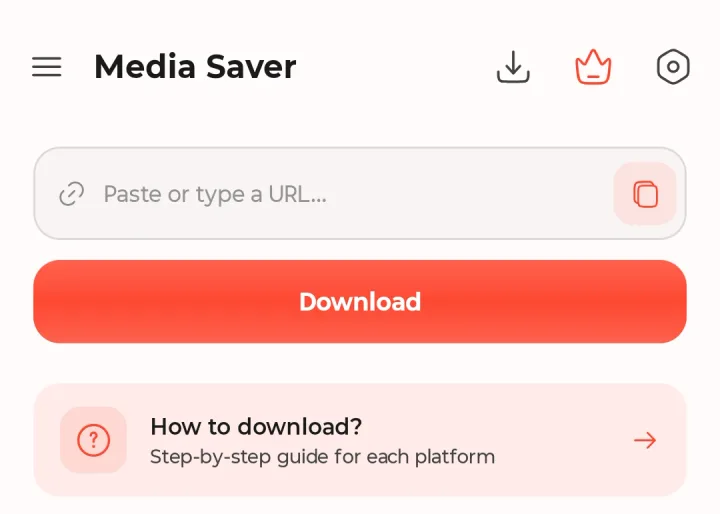
Media Saver reads your clipboard when it opens, so the link is usually waiting in the box before you have touched anything.
Choosing a quality
The Choose quality sheet opens with a card naming the post it found — the platform, the caption and a thumbnail — which is worth a glance to confirm you pasted the right link. Under it is every format that source offers, and the count at the top tells you how many that is.
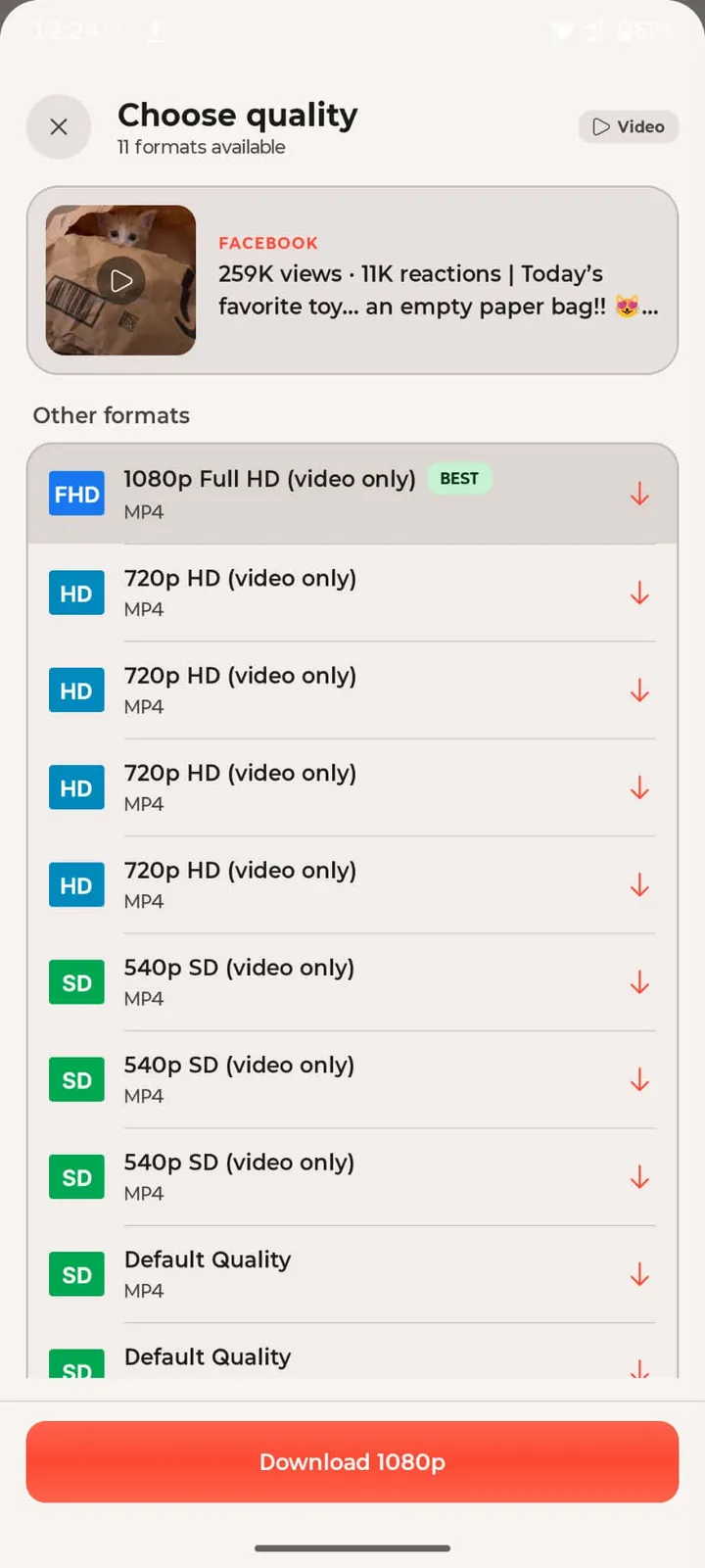
The best available is marked BEST, and the button across the bottom downloads exactly that one — it names the resolution, so Download 1080p is a single tap and you are done.
The list underneath is for when you want something else: a smaller file to save space or data, or a lower resolution that will download faster on a weak connection. You will often see several entries at the same resolution — those are different encodings of the same video, and any of them will play.
Method 2 — Platform pages
Some media cannot be reached by a link alone, because the platform will not serve it to a signed-out visitor. Instagram stories and private Facebook videos are the usual cases.
- On Home, tap a platform under Social Platforms.
- Sign in there once, if the post is private or a story.
- Paste a link or browse to what you want, then tap download.
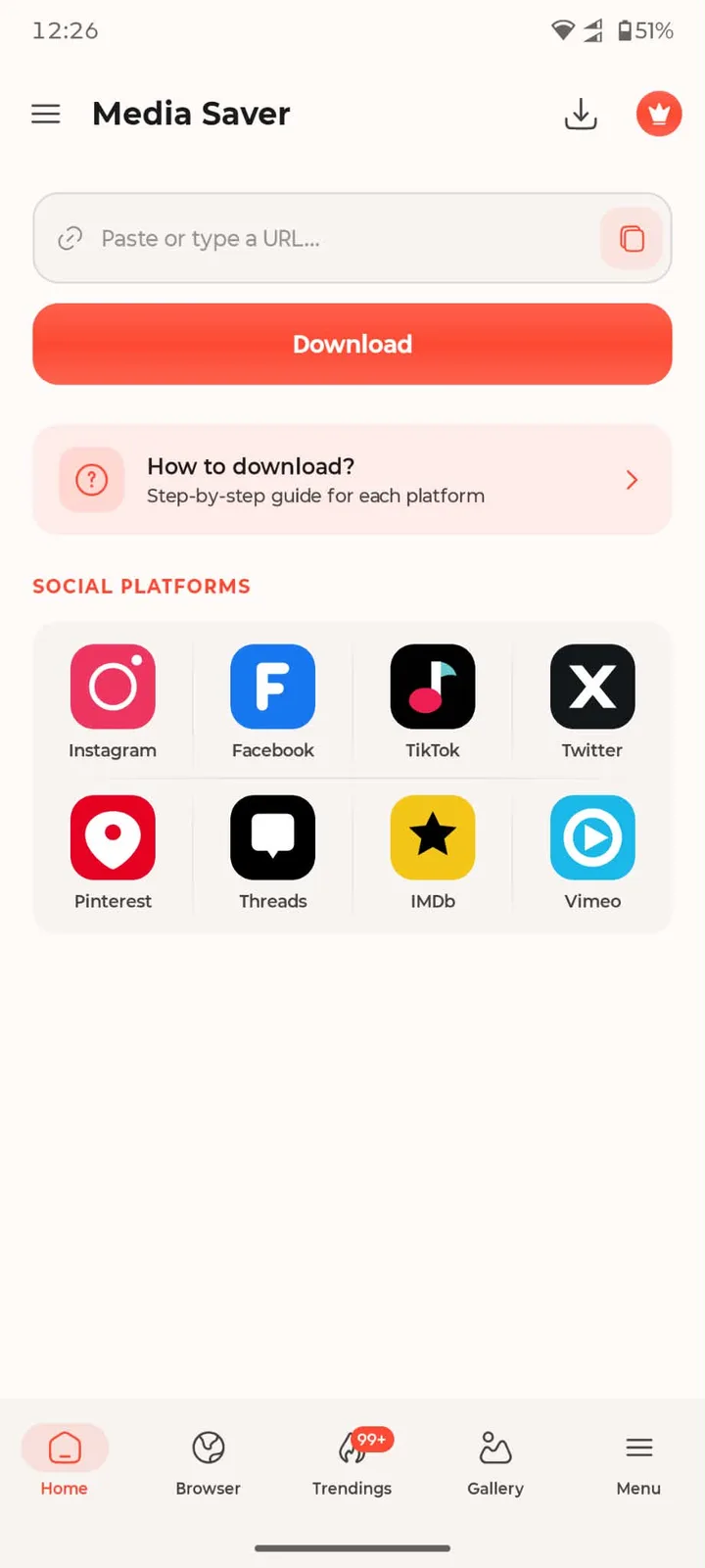
You only have to sign in once — the session is kept for next time.
Method 3 — The built-in browser
For any site without a dedicated page, the Browser tab is the catch-all.
- Open the Browser tab and go to any page with a video on it.
- Play the video — a download badge appears as soon as media is found.
- Tap the badge and choose what to save from the list.
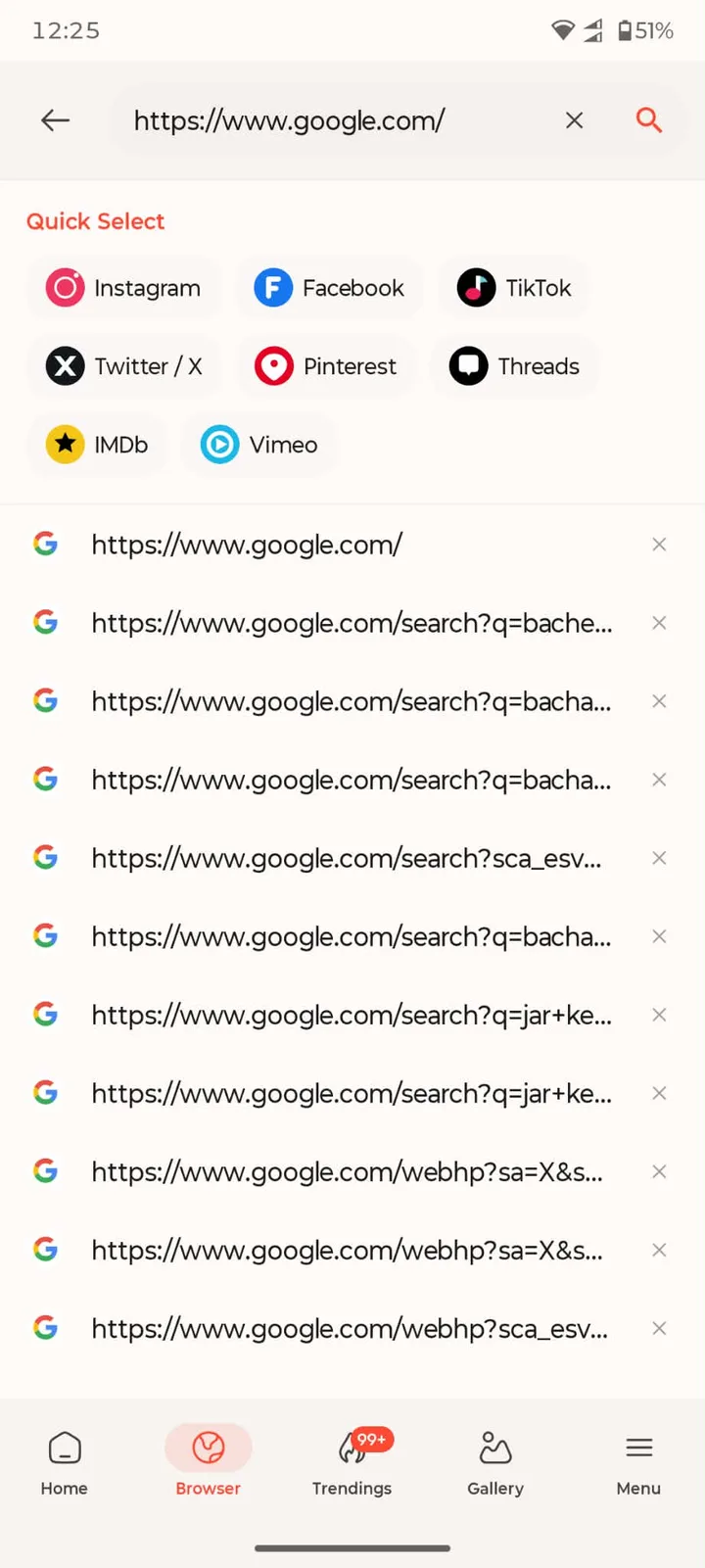
The Quick Select chips along the top are shortcuts to the same eight platforms, so you rarely need to type an address.
The badge does not appear until playback actually starts, because that is the moment the app can see the media stream. If nothing shows up, let the video run for a second or two.
Method 4 — Live and streaming video
Streamed video is not one file — it is hundreds of small segments played back to back. Media Saver handles that for you.
- Open the stream in the Browser tab and start playing it.
- The badge lists it as a stream (HLS or DASH) rather than a file.
- Tap save — the segments are downloaded and merged into a single playable video.
Longer streams take longer, and the merge happens at the end, so let it finish before closing the app.
Platform by platform
The link-paste method is the same everywhere; only the place you find "Copy link" changes.
Instagram — posts, reels, IGTV and stories
- Open the Instagram post, reel or video.
- Tap the share button (the paper-plane icon) → Copy link.
- Paste the link into Media Saver and tap Download.
Stories are the exception: they require signing in through the in-app Browser tab.
Facebook — posts, reels, Watch and stories
- Open the Facebook post or video.
- Tap the three-dot menu → Copy link.
- Paste the link into Media Saver and tap Download.
Private posts need you signed in via the Browser tab first.
TikTok — with or without the watermark
- Open the TikTok video.
- Tap the share icon → Copy link.
- Paste the link into Media Saver and tap Download.
X / Twitter — tweets with video or images
- Open the tweet with the media you want.
- Tap the share icon → Copy link to post.
- Paste the link into Media Saver and tap Download.
Threads — posts and carousel media
- Open the thread you want to save.
- Tap the share icon → Copy link.
- Paste the link into Media Saver and tap Download.
Pinterest — image and video pins
- Open the pin you want to save.
- Tap the share icon → Copy link. Short
pin.it/…links work too. - Paste the link into Media Saver and tap Download.
IMDb — trailers and clips
- Open the IMDb trailer or video page.
- Tap the share icon → Copy link.
- Paste the link into Media Saver and tap Download.
The first IMDb extraction can take around ten seconds while a browser challenge clears. That is normal and only happens once.
Vimeo — public videos
- Open the Vimeo video.
- Copy the URL from the share menu or the address bar.
- Paste the link into Media Saver and tap Download.
Where your files go
Downloads land in your device's public Movies, Pictures and Music folders depending on what they are, so they appear in your gallery and music app without any extra step. Everything is also listed in the app's own Gallery tab, where you can play, share or delete it.
If something does not work
- Nothing found after pasting. Check the link points at the post itself rather than a profile or a feed.
- The badge never appears in the browser. The video has to be playing before the app can see the stream. Start playback, then look again.
- Private or story content. Use a platform page or the Browser tab and sign in. If you cannot see it signed out, neither can the app.
- A stream download stops part-way. Segments are fetched one after another, so a dropped connection halts it. Reconnect and start it again.
Please download responsibly
Everything you save is for your own offline use. The media still belongs to whoever published it — do not re-upload or redistribute anything you do not own or have permission to share.