Fb Video Downloader saves videos from Facebook to your phone so you can watch them without a connection. There are two ways in: paste a link you copied from Facebook, or find the video in the app's own browser and download it where it plays. Both end at the same place — a list of qualities to choose from.
The whole thing takes about fifteen seconds once you have done it once.
What you can save
- Public videos from posts, pages and groups you can already see
- Reels and Watch videos
- Videos in resolutions up to 1080p, where Facebook offers them
If you cannot open a video in Facebook itself — a private group you have not joined, or a post shared with a restricted audience — the app cannot reach it either. Sign in through the in-app browser first and it will behave exactly as Facebook does for your account.
Step 1 — Copy the video's link
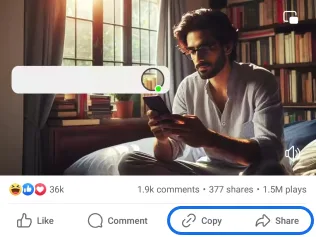
Open the video in Facebook and tap Share under the post.
Step 2 — Choose "Copy link"
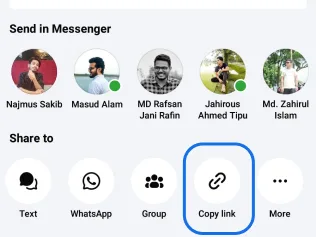
From the share sheet, pick Copy link. Facebook puts the address on your clipboard — nothing else to do.
Step 3 — Paste it into the app
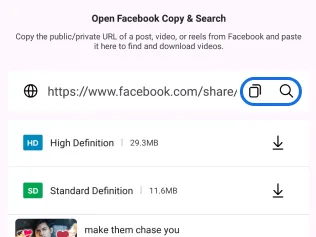
Open Fb Video Downloader and paste the link into the box at the top, then tap search. The app reads the post and works out which video files are behind it.
Or skip the copying — use the built-in browser
If you would rather not bounce between apps, open the Browser tab and sign in to Facebook there. Scroll to any video and a download button appears over it while it plays. Tap that and you are straight at the quality list, no link copying at all.
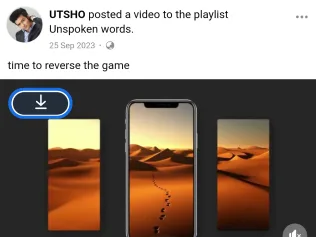
This is also the route to use for anything that needs you to be signed in.
Step 4 — Pick a quality
A sheet lists every version Facebook has for that video, with its file size next to it. Tap the download arrow beside the one you want.
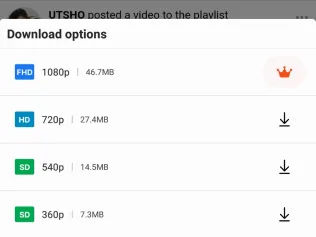
A few things worth knowing when you choose:
- 1080p is the full-quality copy and by far the largest file. Worth it for anything you will watch on a big screen.
- 720p is the sensible default — it still looks sharp on a phone at roughly half the size.
- 540p and 360p exist for when storage or data is tight.
Not every video offers all four. The list only shows what Facebook actually has.
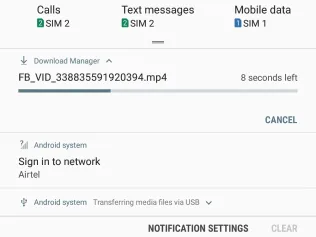
Step 5 — Watch it download
The download starts immediately and runs in the background, so you can close the app or carry on browsing. Progress shows in your notification shade, and the notification turns into a tap-to-open shortcut when it finishes.
Where the videos end up
Finished videos are saved to your device's public Movies folder, which means they show up in your gallery and in any video player you already use. You can also reach them from the Downloads tab inside the app, where you can play, share or delete them.
If something does not work
- "No video found" after pasting. Check you copied a link to the post itself rather than to a profile or a page. The address should contain something like
/videos/,/reel/or/watch. - The video is private. Open it through the Browser tab while signed in. If you cannot see it in Facebook without signing in, the app cannot either.
- The download button does not appear in the browser. Let the video actually start playing first — the button appears once the app has seen the media stream.
- The download stalls. Large 1080p files are sensitive to a patchy connection. Cancel, reconnect and start again, or pick 720p.
A note on what you download
Saved videos are for your own offline viewing. They still belong to whoever made them, so please do not re-upload or redistribute anything you have not made yourself or been given permission to use.